 ChatTiger
Create your account and business
Your account is ready in 3 minutes. There are no passwords: you sign in with a code we email you.
Sign in with your email
-
Enter your email and ask for the code
Go to chattiger.co, type your business email, check the box to agree to the Terms and Privacy policy, and tap Send me the code. If it's your first time, we create your account automatically.
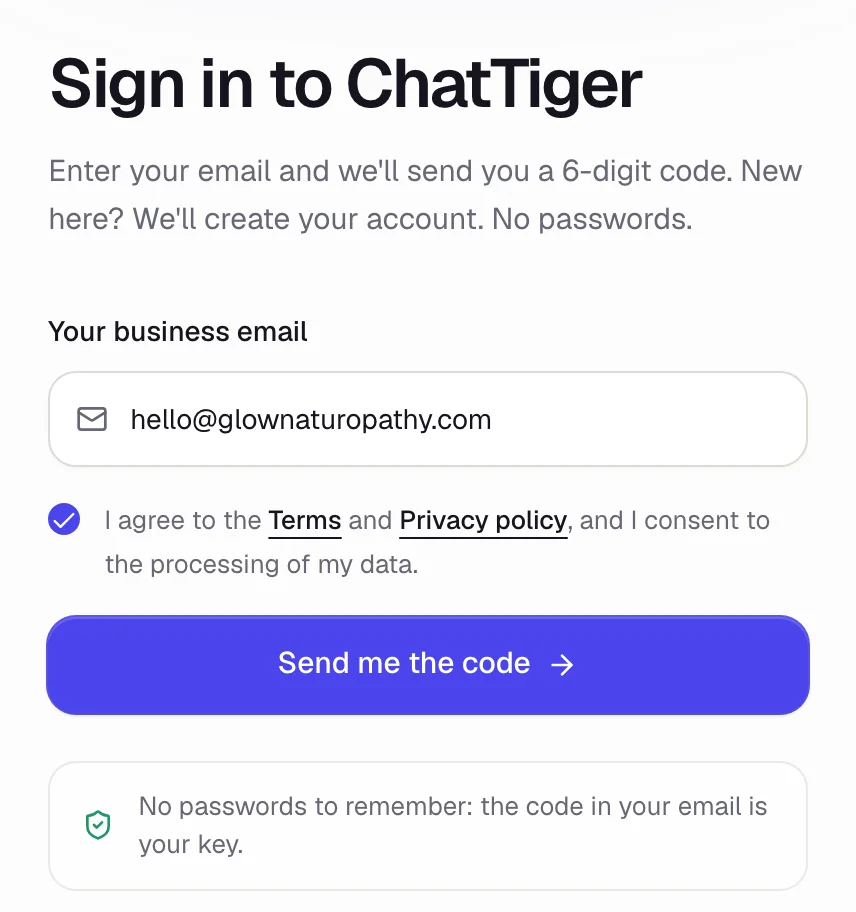 Use an email you actually check
Temporary email addresses don't work. If you see the “Verify you are human” box, tick it to continue.
-
Enter the 6-digit code
You'll get an email with the code. Type it into the boxes and you're in, no extra buttons to tap.
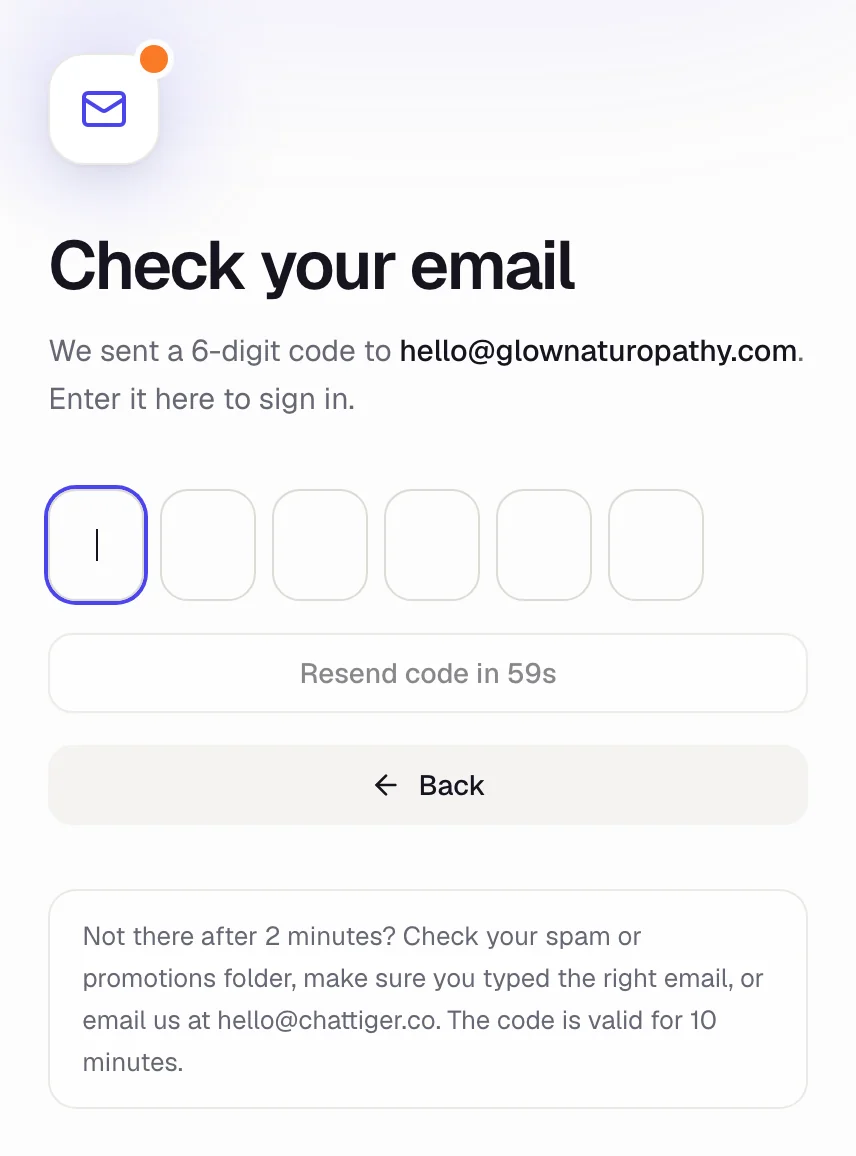
The code lasts 10 minutes. If you ask for a new one, use the one in the most recent email. -
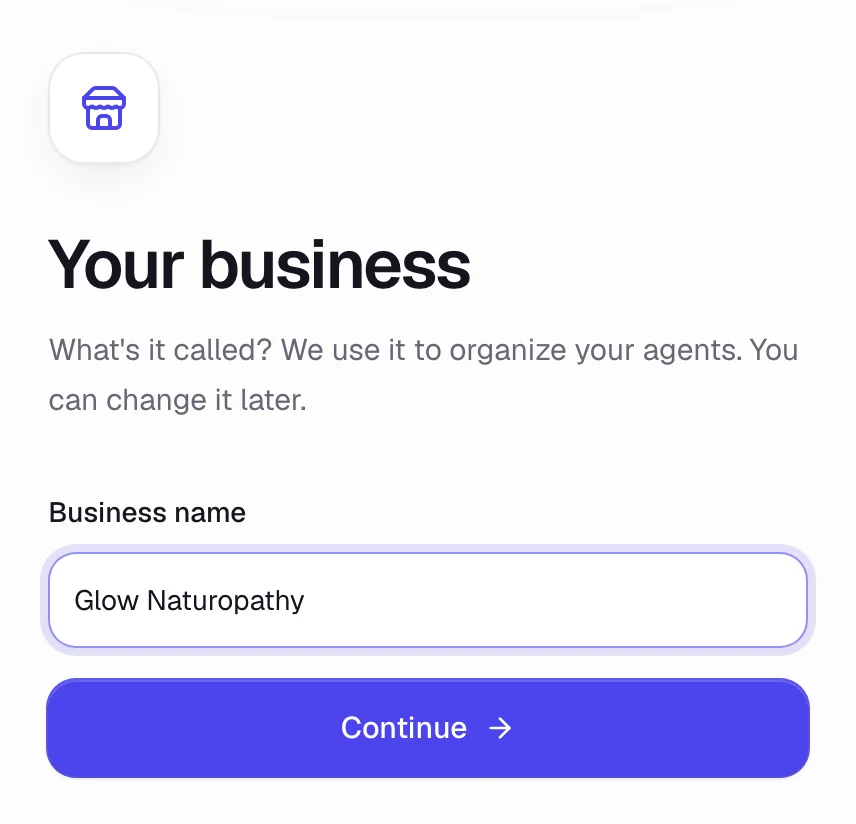
Name your business
Type your business's name and tap Continue. You can change it later in Settings → Your business.
Your first agent
As soon as you create your business, the dashboard opens the first step to set up your Instagram agent. There are 7 steps and your progress is saved as you go. You can leave anytime with Save and exit and pick up later.
- Connect: connect your Instagram. → Guide
- Your business: what your agent knows about you. → Guide
- Rules: how it talks and what it should never do. → Guide
- Test: try it before any customer sees it. → Guide
- Comments: your first “comment to get a DM” rule. → Guide
- Handoff: who gets the conversations it can't handle. → Guide
- Turn on: switch it on.
Your agent starts as a Draft. It won't reply to anyone until you turn it on.
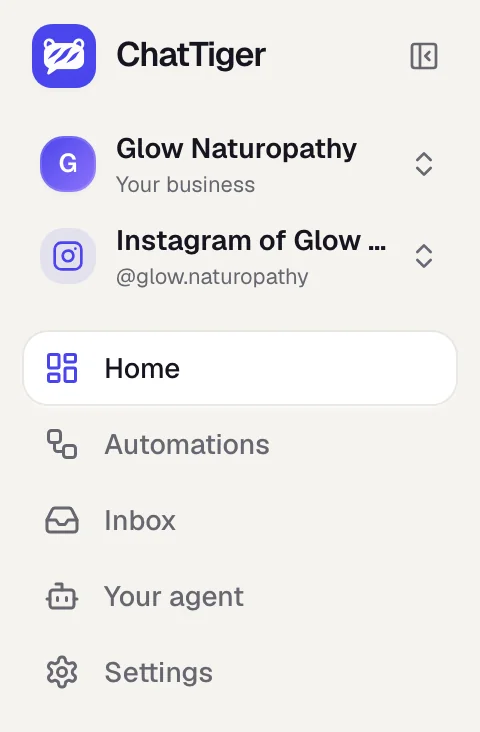
The menu on the left is organized by task: Home (who needs you and what your agent did this week), Automations, Inbox, Your agent and Settings. It works on the agent you pick at the top, under your business. That same picker is where you create another agent, like a chat for your website. On your phone, the same menu sits at the bottom (there, Automations is called Rules).
 1
2
3
- 1Your business: switch to another one or create a new one.
- 2Your agent: the agent the menu is working on. Switch agents or create a new one here.
- 3Your tasks: Home, Automations, Inbox, Your agent and Settings.
The welcome guide
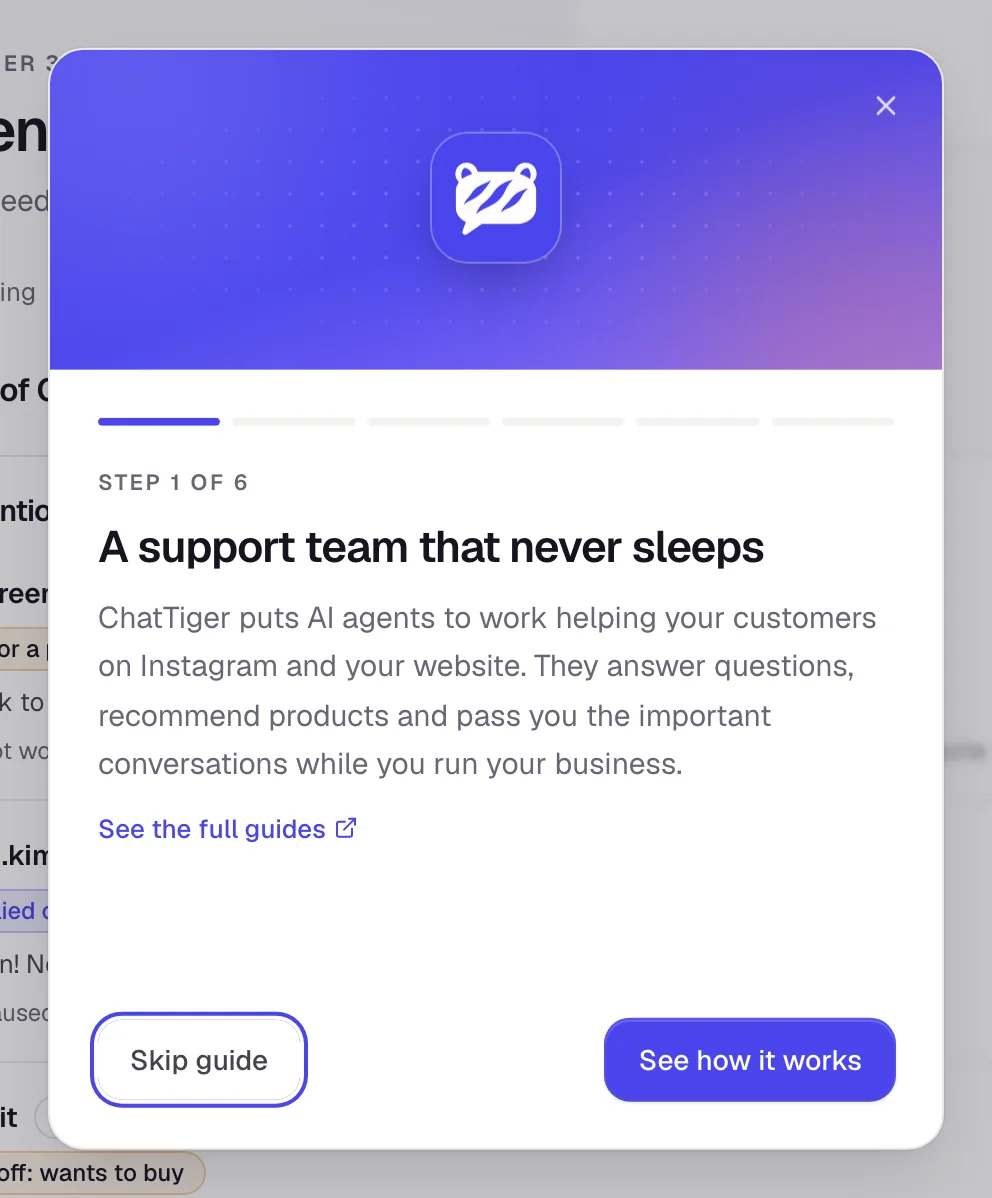
The first time you sign in, you'll see a short 6-step guide that explains how ChatTiger works. If you closed it, open it again from your photo (bottom left) → Getting started guide.
Common problems
I'm not getting the code
Wait 2 minutes and check your spam or promotions folder. Make sure you typed your email correctly. After a minute you can tap Resend code. If it still doesn't show up, email us at [email protected].
It says “That code is wrong or has expired”
The code lasts 10 minutes and works once. Ask for a new one and use the one in the most recent email.
It says “Too many attempts”
You asked for a lot of codes in a row. Wait a few minutes and try again.
It says we've reached today's limit for new accounts
We open a limited number of new accounts each day. Come back tomorrow or email us at [email protected].
It says “Your account already has a business”
Each account has one business. The dashboard takes you to the one you already created.